'%20fill='%23fff'%20fill-rule='evenodd'%20clip-rule='evenodd'%20d='M1.94516e-05%200.0202086C0.0420195%201.22421%2015.477%2022.8672%2025.974%2036.4392C80.466%20106.895%20148.48%20166.337%20231.974%20216.477C250.654%20227.694%20271.214%20239.258%20308.974%20259.785C390.041%20303.855%20418.027%20323.655%20445.375%20356.29C457.567%20370.839%20458.267%20370.657%20438.242%20358.146C387.532%20326.465%20356.693%20316.359%20305.474%20314.635C278.901%20313.741%20256.584%20316.015%20228.224%20322.508C219.385%20324.532%20216.216%20326.29%20221.407%20326.29C233.608%20326.29%20264.586%20334.87%20282.263%20343.145C295.881%20349.52%20314.974%20361.858%20314.974%20364.283C314.974%20364.695%20312.612%20365.334%20309.724%20365.703C241.199%20374.463%20154.183%20428.191%2092.562%20499.79C75.09%20520.091%2071.7%20524.859%2077.035%20521.628C78.926%20520.482%2084.728%20516.968%2089.927%20513.819C112.706%20500.021%20145.195%20487.437%20169.935%20482.828C181.824%20480.613%20205.552%20478.817%20211.298%20479.696L216.122%20480.435L203.794%20493.112C142.137%20556.516%20104.948%20625.881%2092.913%20699.925C90.533%20714.569%2090.783%20715.586%2094.806%20707.641C105.92%20685.691%20127.936%20659.716%20144.474%20649.04C150.781%20644.969%20158.103%20641.29%20159.899%20641.29C160.273%20641.29%20161.083%20648.827%20161.699%20658.04C165.47%20714.441%20188.011%20764.593%20226.674%20802.603C262.563%20837.887%20306.066%20866.035%20398.474%20913.767C434.747%20932.503%20444.973%20937.877%20458.974%20945.562C570.722%201006.9%20619.955%201060.37%20650.021%201153.06C653.459%201163.66%20656.39%201172.21%20656.535%201172.06C656.68%201171.91%20657.989%201166.17%20659.445%201159.29C682.51%201050.31%20655.152%20934.035%20584.506%20840.79C562.617%20811.9%20543.899%20791.508%20489.954%20737.79C426.931%20675.032%20411.607%20655.099%20405.006%20627.29C392.323%20573.863%20438.939%20538.423%20500.849%20554.425C526.675%20561.1%20544.604%20577.062%20549.915%20598.107L551.59%20604.743L564.032%20606.485C634.063%20616.289%20704.147%20646.368%20736.626%20680.561C749.96%20694.598%20749.787%20706.055%20736.132%20713.269L732.474%20715.202L742.766%20715.246C753.94%20715.294%20764.079%20713.573%20776.282%20709.556L784.091%20706.987L786.782%20708.95C791.451%20712.357%20797.8%20722.825%20799.144%20729.336C800.681%20736.776%20800.851%20736.757%20806.282%20728.54C830.903%20691.286%20836.954%20633.079%20820.076%20595.855L817.271%20589.667L808.372%20586.346C782.299%20576.613%20762.637%20558.586%20741.181%20524.743C729.885%20506.926%20727.08%20500.527%20723.898%20485.323C719.333%20463.505%20718.535%20461.808%20707.053%20449.509C690.138%20431.393%20684.217%20423.522%20661.746%20389.29C602.592%20299.172%20519.411%20225.38%20413.356%20168.936C385.699%20154.217%20328.981%20128.949%20327.322%20130.609C327.135%20130.796%20332.883%20134.879%20340.096%20139.682C394.802%20176.112%20443.502%20218.504%20467.755%20250.806C475.015%20260.475%20485.69%20277.926%20484.843%20278.74C484.64%20278.936%20480.199%20275.945%20474.974%20272.096C430.93%20239.644%20400.199%20223.792%20315.974%20190.078C174.722%20133.537%20108.045%2094.3042%2016.767%2014.0202C7.53105%205.89621%20-0.0139805%20-0.403791%201.94516e-05%200.0202086ZM592.467%20436.927C603.971%20451.343%20612.149%20463.814%20615.502%20472.054C626.595%20499.317%20631.458%20503.825%20657.974%20511.427C664.299%20513.24%20674.182%20517.081%20679.937%20519.961C685.691%20522.842%20690.502%20525.096%20690.627%20524.971C690.752%20524.845%20688.519%20521.149%20685.664%20516.757C682.81%20512.364%20678.077%20504.207%20675.147%20498.629C668.633%20486.227%20664.825%20482.16%20649.462%20471.196C634.986%20460.866%20585.876%20426.936%20584.662%20426.427C584.187%20426.228%20587.699%20430.953%20592.467%20436.927Z'/%3e%3c/svg%3e)
Team and Roles
Six roles, with a finely structured set of permissions above them. What someone sees is determined by the permission, not the role alone.
Create and invite employees
Only a name is required for a security officer. Phone, email, qualifications, Bewacherregister ID, vehicle and place of residence are optional. The account and profile are created in one step without a password. Sign-in uses an SMS code. There is no app access without a phone number.
Office staff are invited by email, with Dispatcher and Quality Management available as roles. The invitation link leads to password setup, remains valid for 7 days and can only be used once.
Roles and permissions
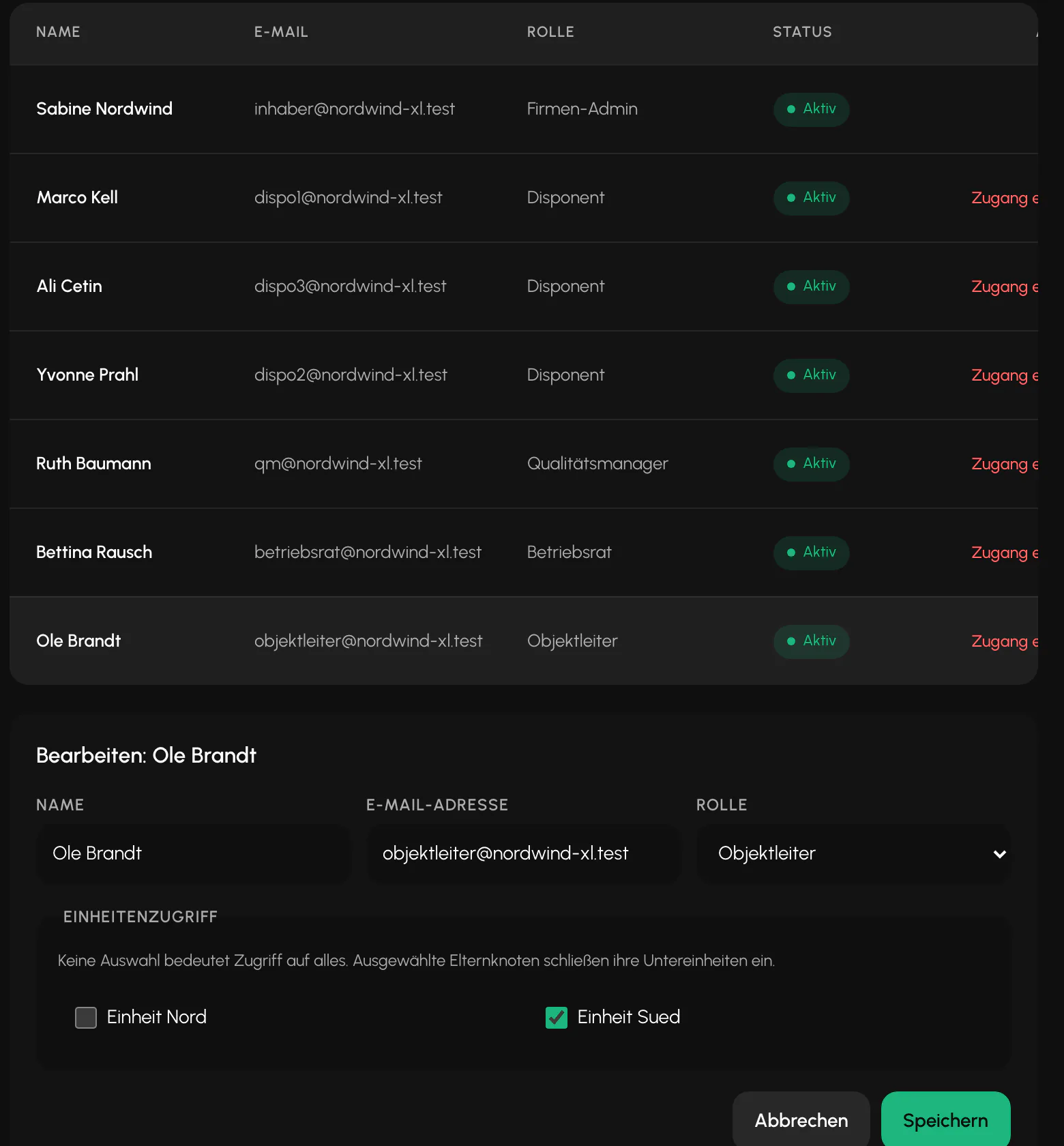
There are six roles: Employee, Dispatcher, Customer, Administrator, Owner and Quality Management. Above them is a finely structured set of permissions and three predefined presets: Executive Management with all permissions, Dispatcher and Quality Management. You can create custom roles.
The principle is "denied by default": anyone without an explicitly assigned permission receives a rejection. Read and write are separate permissions. Permissions are checked again for every action. A revoked permission therefore takes effect immediately, even if the person is currently signed in.
No one can assign someone a higher level than their own.
The employee profile
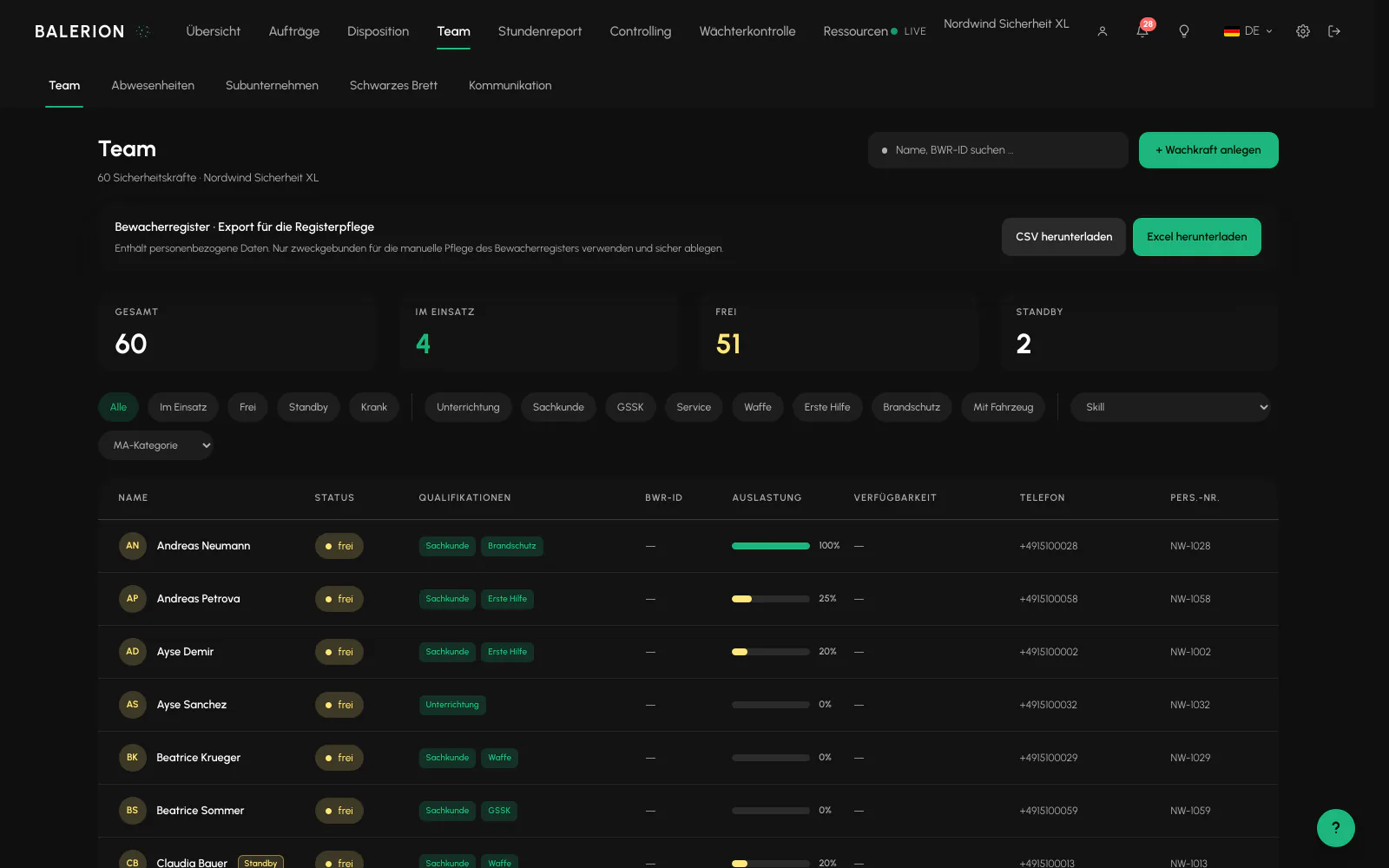
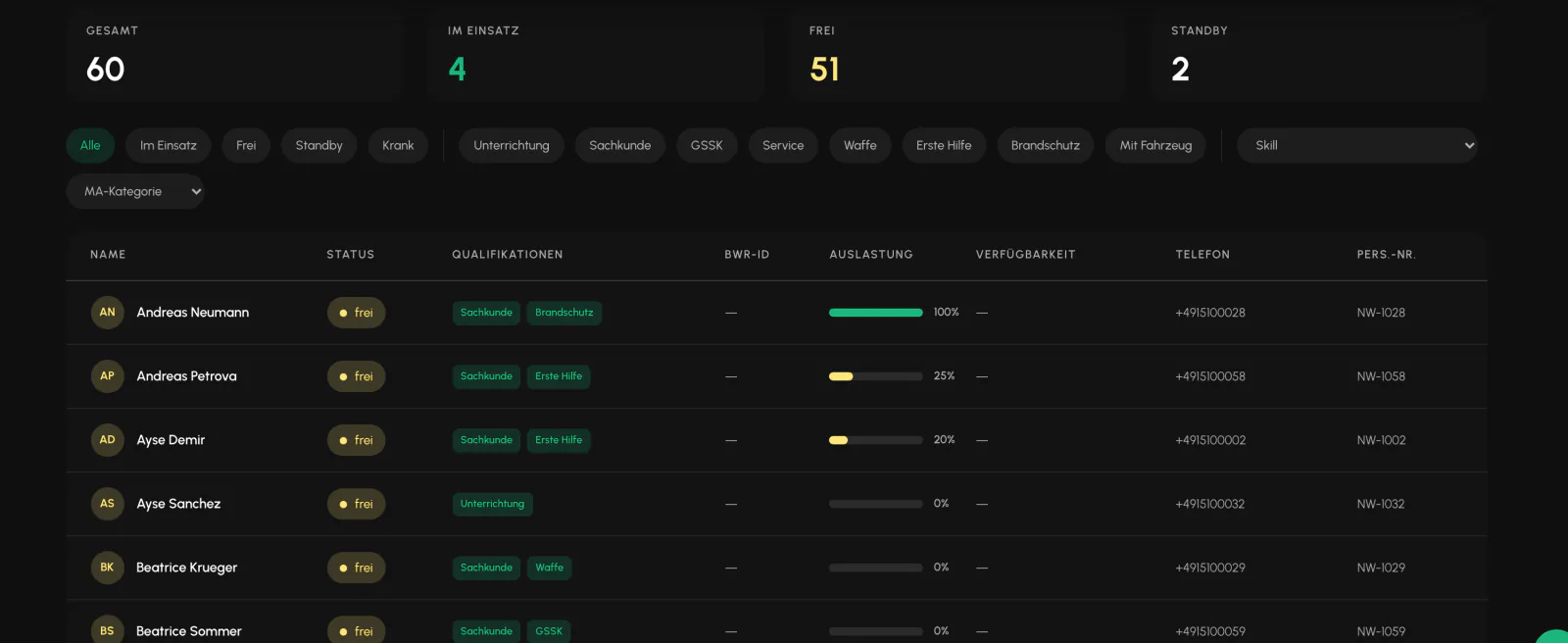
The team list shows metrics and can be filtered by qualifications. Behind it, each security officer has a profile with five tabs: General, Contract and personnel, Payroll, Documents and Site blocks.
The Contract and Payroll tabs are visible to the owner only. Fields relating to tax, bank details, identity documents and contracts are blocked for dispatchers. They are neither displayed nor accepted.
Limit: An emergency contact is not currently provided.
Employment status and standby
Every security officer has an employment status: Active, Standby, Inactive, Former employee, Applicant or Anonymized. It is set in the employee profile and is available as a filter and tile in the team list.
Standby is intended for officers who remain part of the workforce but should not currently be scheduled, for example during parental leave or an extended break. They are no longer included in staffing suggestions and do not count as ready for assignment.
Work already performed remains paid. If a row in the payroll preview relates to an officer on standby, a notice identifies this so that no one mistakes it for an error.
Two displays that are easy to confuse: The Standby tile in the team list counts the employment status. The Reserve tile in the overview instead counts officers who are ready for assignment but have no duty today. They deliberately measure different things.
Deactivating and deleting
Deactivation is the normal case, and all evidence is retained. Only the owner may permanently delete someone. Deletion is blocked as soon as worked or billable assignments, security logbook entries, patrol scans or unreturned equipment exist.
This is intentional: evidence that could be removed by deleting an employee would be worthless as evidence.
If information is missing from the profile, you can add it as a custom field.
Related
- Qualifications and § 34aSeven qualifications, nine document types and a check that strictly blocks scheduling.
- Custom FieldsInformation that does not fit into a standard field gets its own field. Custom fields are available for security officers, sites and orders.
- Inventory and EquipmentUniforms, keys, radios and company phones, issued to a person and returned with a traceable record.
- Digital Guard LogbookSeven entry types, optional photos, and no option to change anything afterward. This is precisely what makes it useful as evidence.
Updated on: 03.09.2026