'%20fill='%23fff'%20fill-rule='evenodd'%20clip-rule='evenodd'%20d='M1.94516e-05%200.0202086C0.0420195%201.22421%2015.477%2022.8672%2025.974%2036.4392C80.466%20106.895%20148.48%20166.337%20231.974%20216.477C250.654%20227.694%20271.214%20239.258%20308.974%20259.785C390.041%20303.855%20418.027%20323.655%20445.375%20356.29C457.567%20370.839%20458.267%20370.657%20438.242%20358.146C387.532%20326.465%20356.693%20316.359%20305.474%20314.635C278.901%20313.741%20256.584%20316.015%20228.224%20322.508C219.385%20324.532%20216.216%20326.29%20221.407%20326.29C233.608%20326.29%20264.586%20334.87%20282.263%20343.145C295.881%20349.52%20314.974%20361.858%20314.974%20364.283C314.974%20364.695%20312.612%20365.334%20309.724%20365.703C241.199%20374.463%20154.183%20428.191%2092.562%20499.79C75.09%20520.091%2071.7%20524.859%2077.035%20521.628C78.926%20520.482%2084.728%20516.968%2089.927%20513.819C112.706%20500.021%20145.195%20487.437%20169.935%20482.828C181.824%20480.613%20205.552%20478.817%20211.298%20479.696L216.122%20480.435L203.794%20493.112C142.137%20556.516%20104.948%20625.881%2092.913%20699.925C90.533%20714.569%2090.783%20715.586%2094.806%20707.641C105.92%20685.691%20127.936%20659.716%20144.474%20649.04C150.781%20644.969%20158.103%20641.29%20159.899%20641.29C160.273%20641.29%20161.083%20648.827%20161.699%20658.04C165.47%20714.441%20188.011%20764.593%20226.674%20802.603C262.563%20837.887%20306.066%20866.035%20398.474%20913.767C434.747%20932.503%20444.973%20937.877%20458.974%20945.562C570.722%201006.9%20619.955%201060.37%20650.021%201153.06C653.459%201163.66%20656.39%201172.21%20656.535%201172.06C656.68%201171.91%20657.989%201166.17%20659.445%201159.29C682.51%201050.31%20655.152%20934.035%20584.506%20840.79C562.617%20811.9%20543.899%20791.508%20489.954%20737.79C426.931%20675.032%20411.607%20655.099%20405.006%20627.29C392.323%20573.863%20438.939%20538.423%20500.849%20554.425C526.675%20561.1%20544.604%20577.062%20549.915%20598.107L551.59%20604.743L564.032%20606.485C634.063%20616.289%20704.147%20646.368%20736.626%20680.561C749.96%20694.598%20749.787%20706.055%20736.132%20713.269L732.474%20715.202L742.766%20715.246C753.94%20715.294%20764.079%20713.573%20776.282%20709.556L784.091%20706.987L786.782%20708.95C791.451%20712.357%20797.8%20722.825%20799.144%20729.336C800.681%20736.776%20800.851%20736.757%20806.282%20728.54C830.903%20691.286%20836.954%20633.079%20820.076%20595.855L817.271%20589.667L808.372%20586.346C782.299%20576.613%20762.637%20558.586%20741.181%20524.743C729.885%20506.926%20727.08%20500.527%20723.898%20485.323C719.333%20463.505%20718.535%20461.808%20707.053%20449.509C690.138%20431.393%20684.217%20423.522%20661.746%20389.29C602.592%20299.172%20519.411%20225.38%20413.356%20168.936C385.699%20154.217%20328.981%20128.949%20327.322%20130.609C327.135%20130.796%20332.883%20134.879%20340.096%20139.682C394.802%20176.112%20443.502%20218.504%20467.755%20250.806C475.015%20260.475%20485.69%20277.926%20484.843%20278.74C484.64%20278.936%20480.199%20275.945%20474.974%20272.096C430.93%20239.644%20400.199%20223.792%20315.974%20190.078C174.722%20133.537%20108.045%2094.3042%2016.767%2014.0202C7.53105%205.89621%20-0.0139805%20-0.403791%201.94516e-05%200.0202086ZM592.467%20436.927C603.971%20451.343%20612.149%20463.814%20615.502%20472.054C626.595%20499.317%20631.458%20503.825%20657.974%20511.427C664.299%20513.24%20674.182%20517.081%20679.937%20519.961C685.691%20522.842%20690.502%20525.096%20690.627%20524.971C690.752%20524.845%20688.519%20521.149%20685.664%20516.757C682.81%20512.364%20678.077%20504.207%20675.147%20498.629C668.633%20486.227%20664.825%20482.16%20649.462%20471.196C634.986%20460.866%20585.876%20426.936%20584.662%20426.427C584.187%20426.228%20587.699%20430.953%20592.467%20436.927Z'/%3e%3c/svg%3e)
Duty Roster and Scheduling
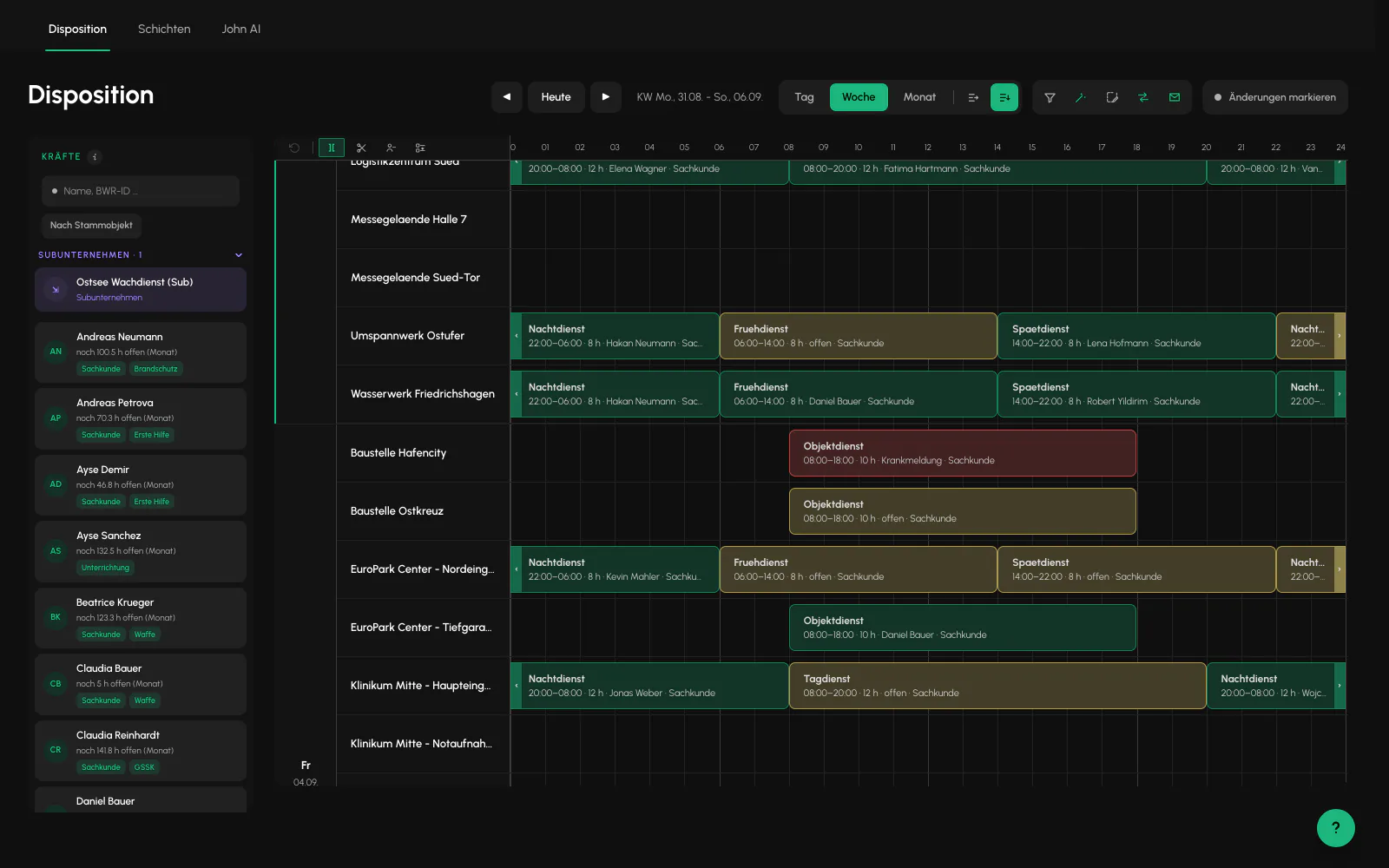
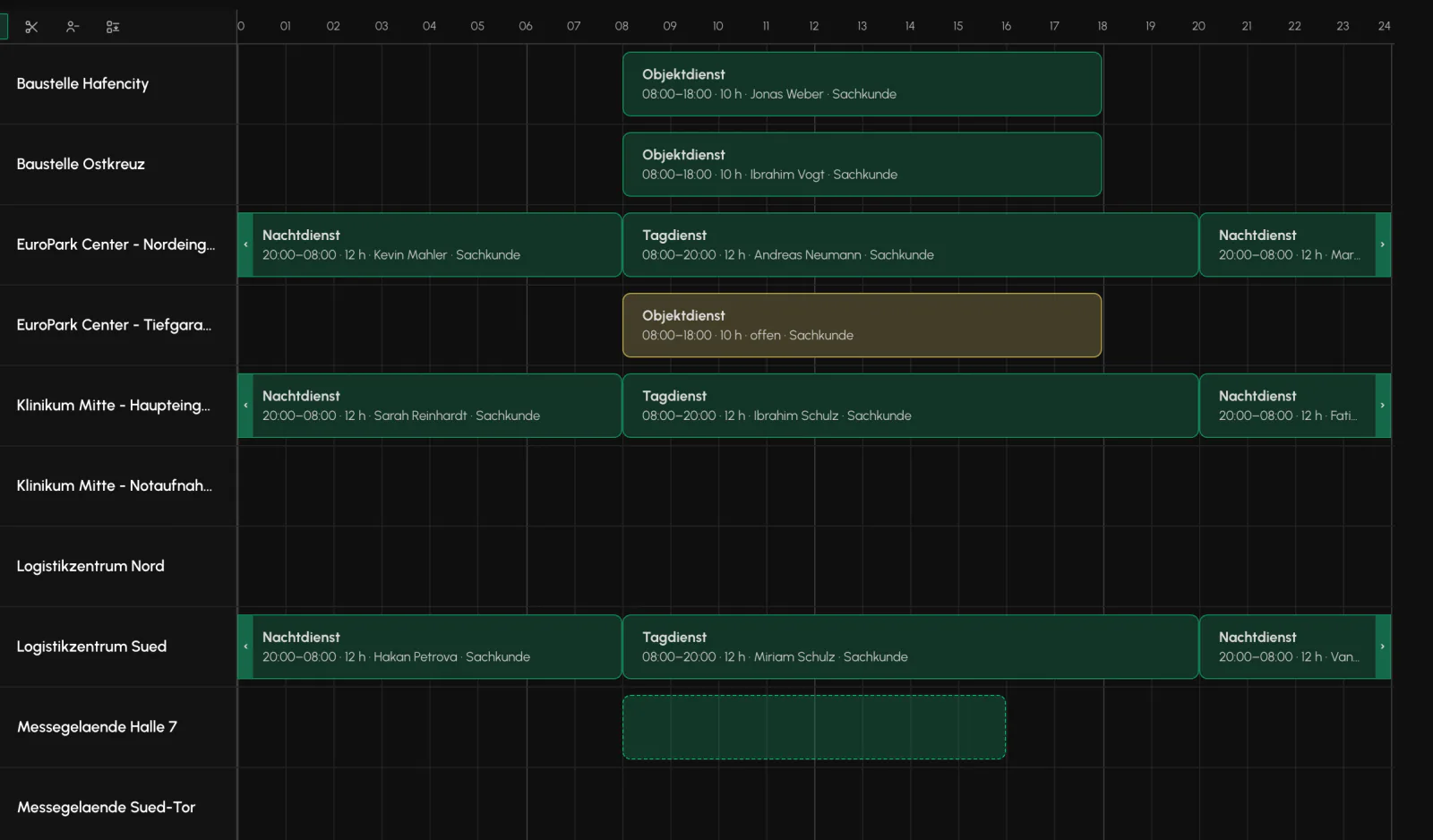
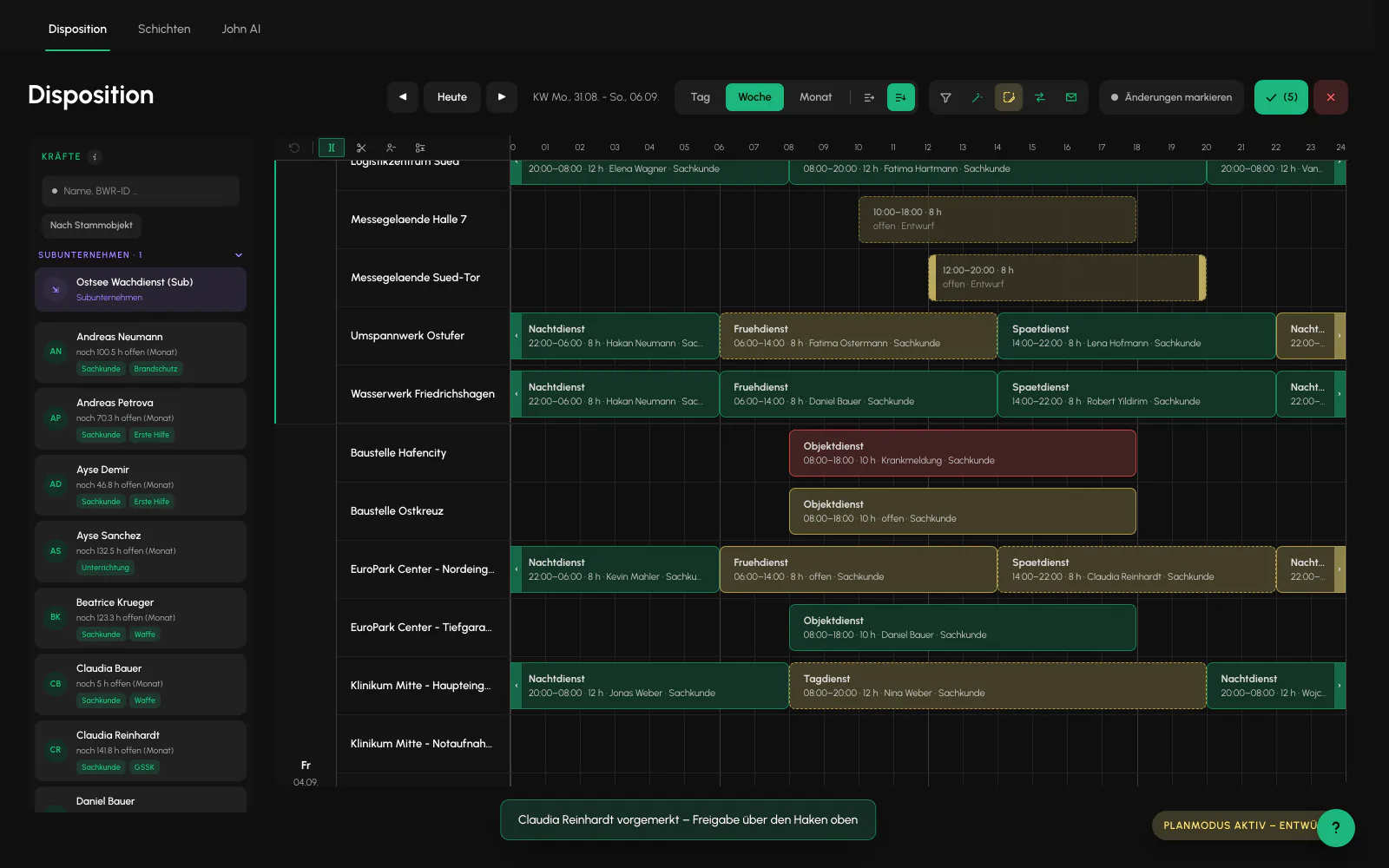
Site rows on a timeline. Draw, resize, split and assign. A set of rules checks every assignment in the background.
Requirements
- Customer, site and order created
- At least one security officer on the team
The board
Shifts can be drawn with the pointer, resized, split, duplicated and assigned by dragging. Drawing on an empty lane creates a new shift and, if needed, creates an order at the same time. The grid uses 15 minute intervals.
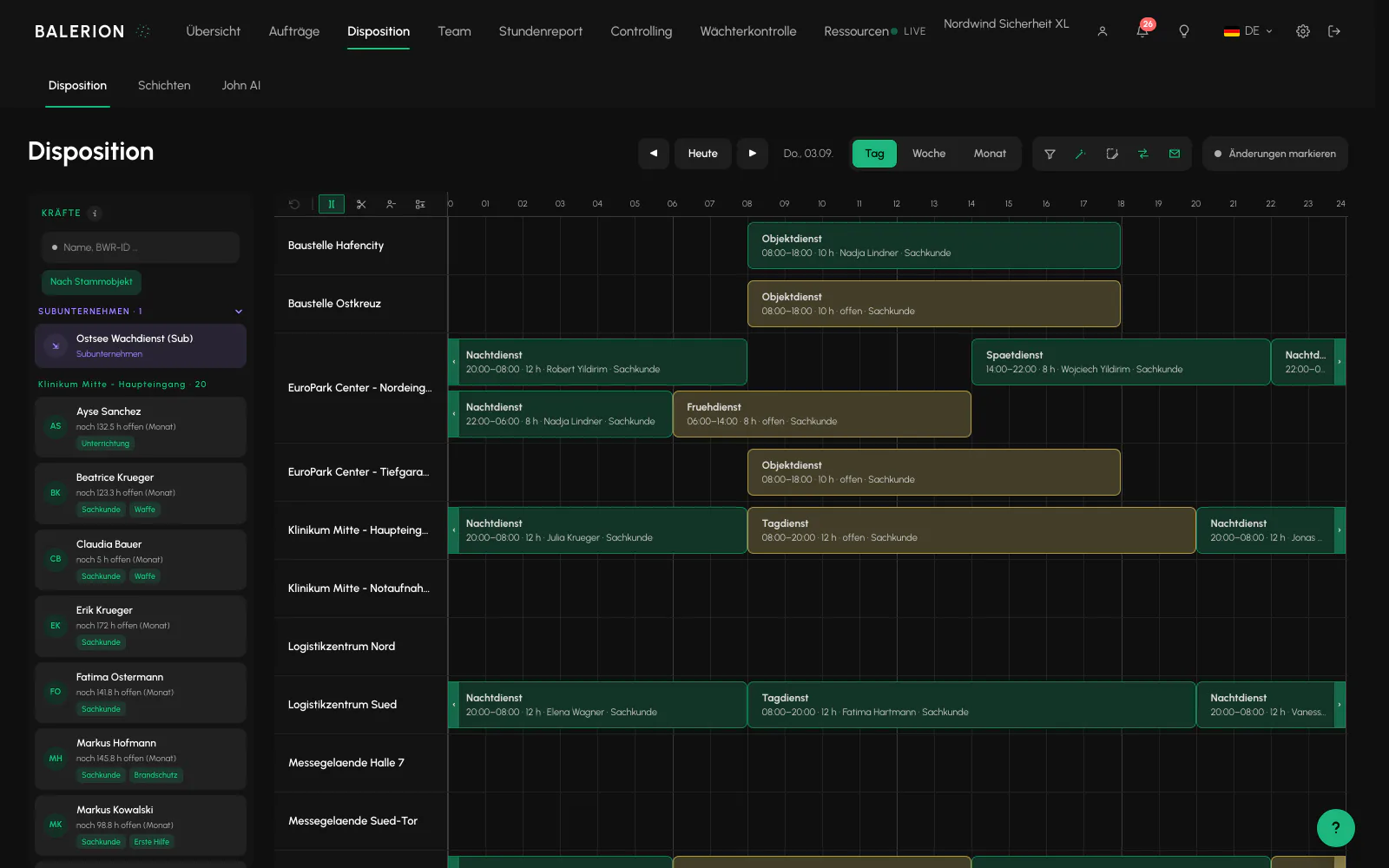
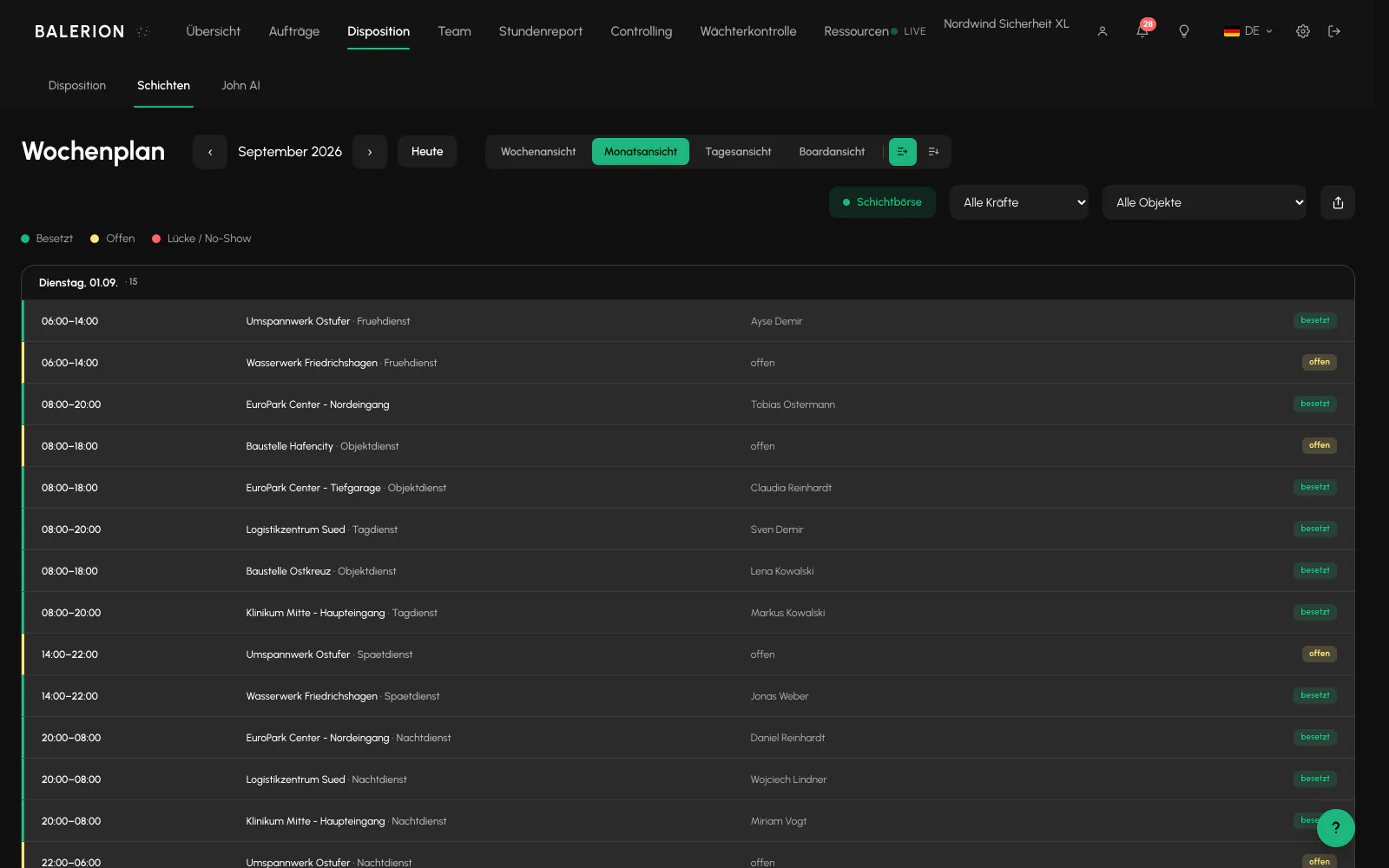
There are day, week and month views, plus a separate weekly roster with PDF output, one page per security officer.
The month view can be switched between two layouts: Grid shows employees across days, while Daily list shows each day in sequence. On narrow screens and with many security officers, the daily list is the more readable option. When opened, the view jumps to today.
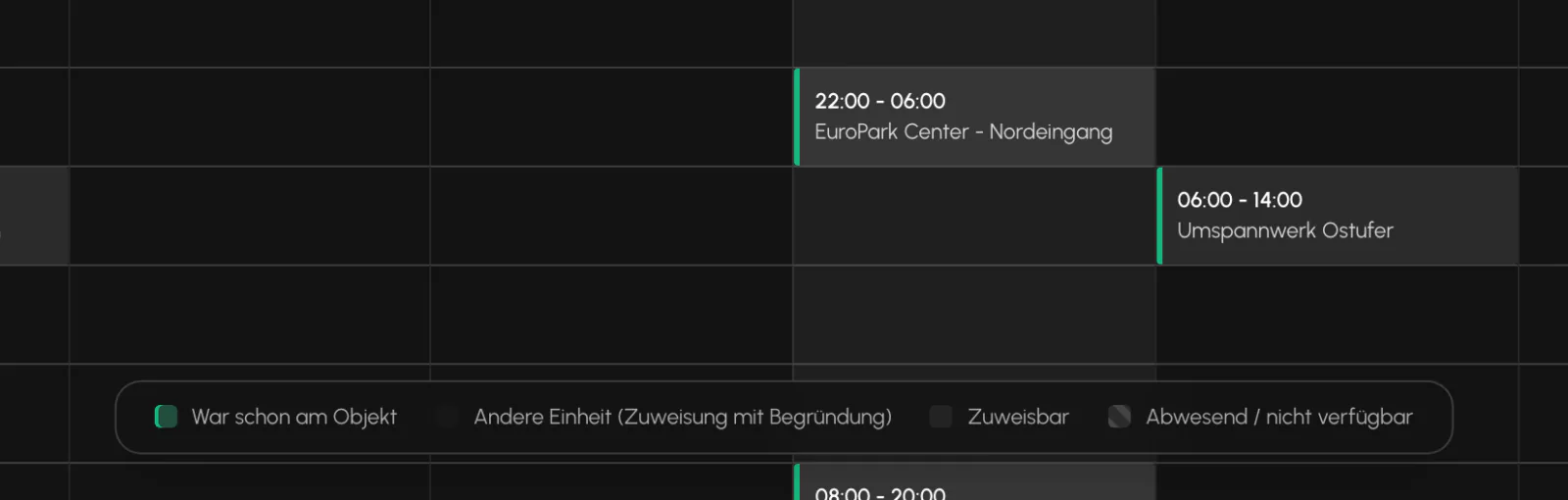
In the weekly roster, each shift tile shows the site name, not just the shift label. When you drag a shift onto a security officer there, the rows of officers who already know this site from recent months light up in green. The deciding factor is the sites where an officer was regularly assigned. A single assignment months ago therefore does not cause the row to light up. This is also a suggestion, not an approval.
Undo is available with Ctrl+Z or Cmd+Z, up to 20 steps. Moving, resizing, changing breaks, splitting, assigning and unassigning can be undone. Order creation, delegation and deletion cannot be undone.
The staff palette
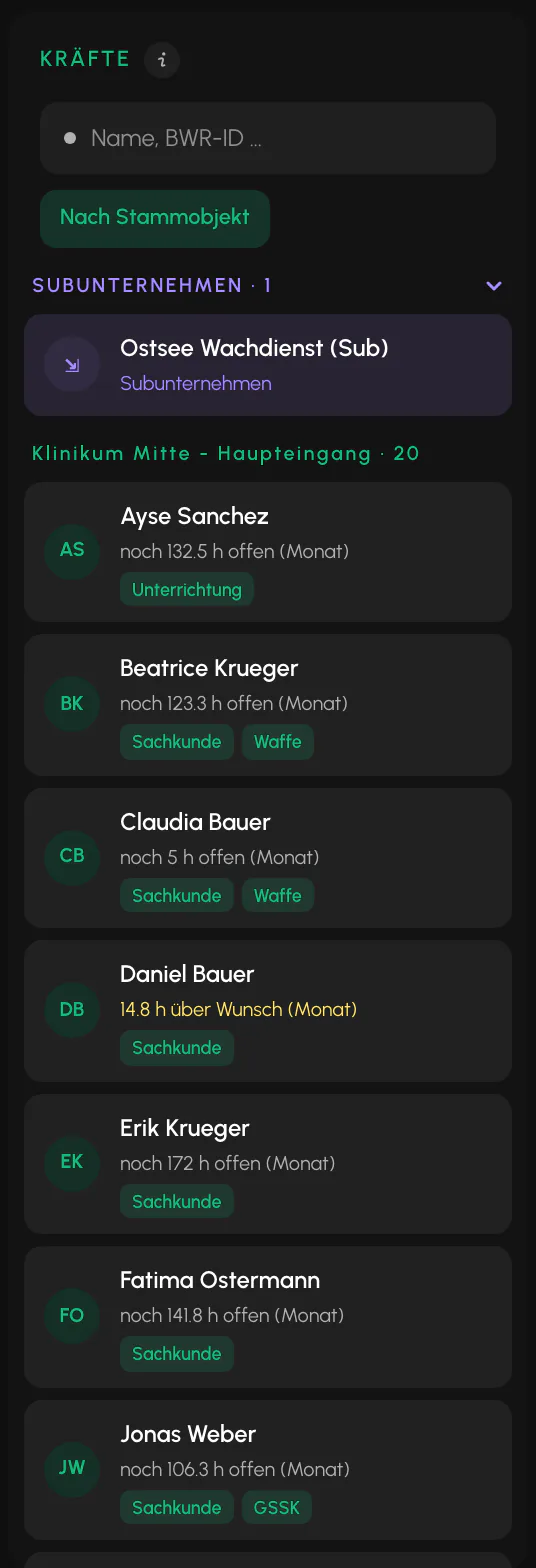
The list of security officers is on the left of the board and is used for assignments. It shows more than may be apparent at first:
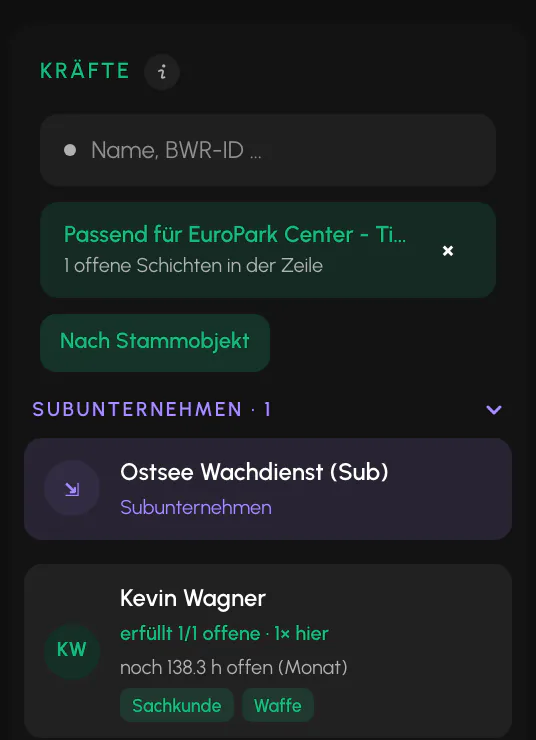
- Group by regular site. A button below the search field sorts the list by the site where the officer worked most often in recent months. Officers without an assignment history appear in a separate group at the end. The toggle is always off when the page opens and its state is not remembered.
- Remaining preferred hours. Below the name, the list shows how much of the preferred monthly quota is still open or, in a warning color, how far the officer is already above it. The row appears only if preferred monthly hours are stored for the member.
- Scheduled officers grayed out. In the day view, officers who already have an assignment that day appear dimmed, with the note "already scheduled today", and move to the end of the list. An offer on the shift marketplace alone does not count as scheduled.
- Drag note. If you drag an officer who is already scheduled in the day view, a note with their time windows for that day appears while dragging.
The dimming and the note are guidance, not blocks. You can still drop the officer. As always, the check takes place only during assignment. Both are available only in the day view.
Across midnight
Night shifts span two calendar days and appear as two bars. The label continues to show the actual times.
An asymmetry that regularly causes confusion: Drawing and dragging an edge can cross midnight, but moving remains within the day. You cannot move a night shift by one day using the move action.
Planning mode
Planning mode is for preparation: you can plan an entire week without anyone on the team being notified, then release everything in one action at the end.
When it is on, the "Planning mode active" pill appears above the board. The following applies:
- New shifts are created as drafts. Drafts are invisible to security officers and do not trigger a notification.
- Assignments to existing shifts are collected as reservations. They appear with dashed outlines on the board, and the name is visible. At this point, no one has been assigned yet.
The "Publish" check mark counts drafts and reservations together. When selected, every reservation is assigned individually and goes through the same checks as a normal assignment. If one encounters a conflict or you cancel a dialog, that reservation remains open and is reported to you. The others are processed.
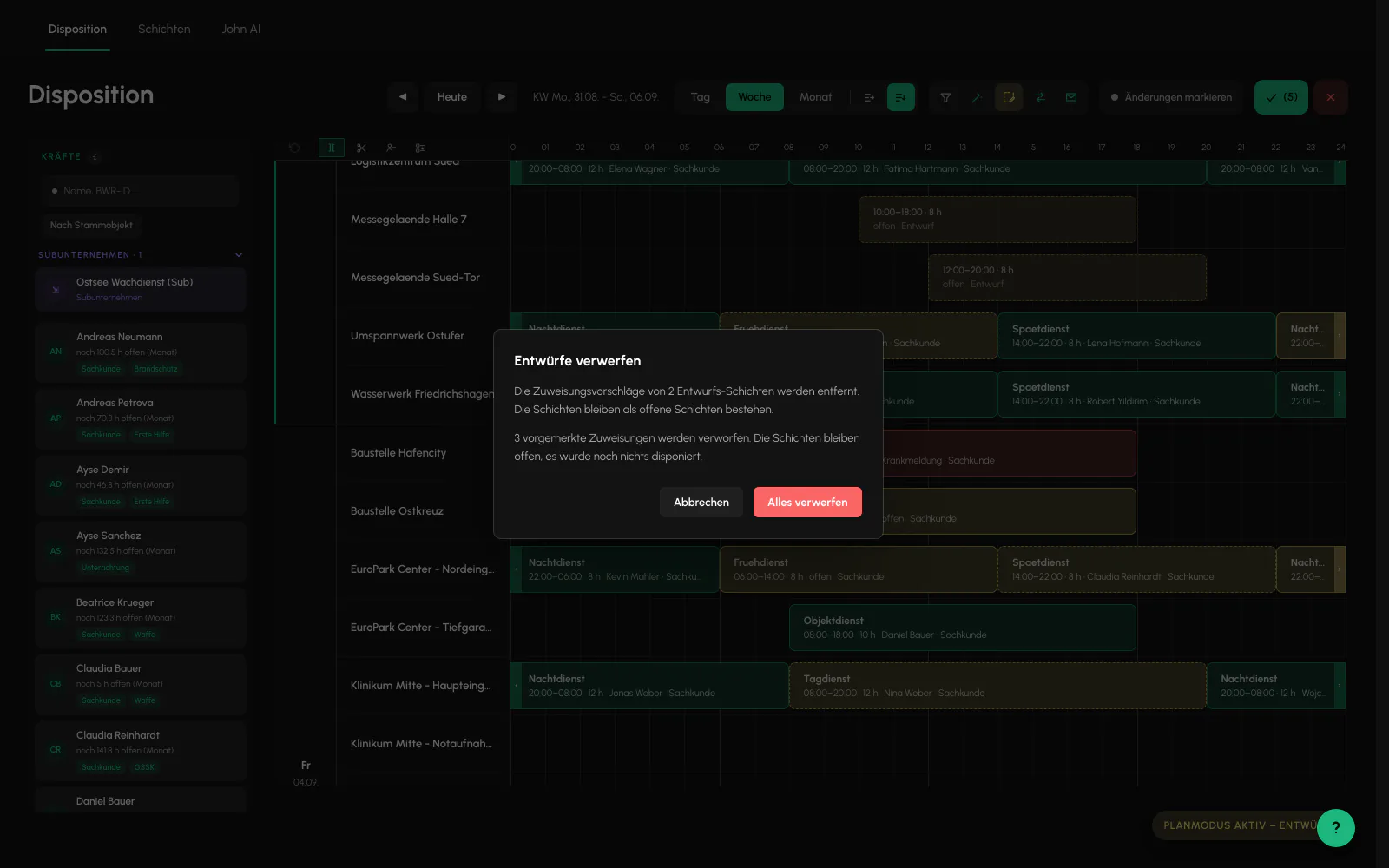
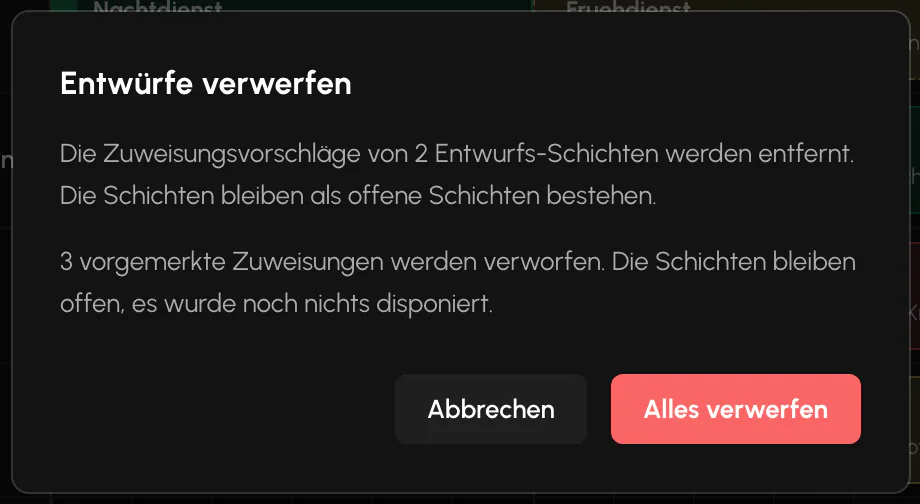
The red X discards both. The confirmation dialog states the actual numbers so that you do not accidentally discard half a week's work.
Two details: The mode applies only to the current session. Planning mode does not remain enabled for days after being switched on once. The reservations themselves survive a reload and can still be published. They are also tied to your browser, so a colleague cannot see them.
The switch is available only in Scheduling. The shift roster does not create anything itself, so there would be nothing to publish there. Drafts are still visibly marked there.
What is checked for every assignment
All staffing routes use the same check, whether you drag in the plan, use the marketplace or use the replacement agent. There is no less restrictive route around the rules. The system checks: active security officer, required qualification, site block, deployment clearance for the site, approved absence, double booking and the requirements of Arbeitszeitgesetz. If the assignment is rejected, the message states the reason.
The system also checks whether the shift can be staffed at all. Shifts delegated to a subcontractor and shifts that are already completed are rejected. If the order belongs to an organizational unit, the security officer must belong to this unit at the start of the shift, either as their home unit or through a loan.
A note that can prevent a support request: If this check reports "Security officer not found" even though the officer appears in the list, the unit is almost always the cause. Loan the officer to the unit or adjust the order's unit.
The start of the shift is decisive, not the time when you create the plan. A loan window must therefore cover the day of the shift.
What is not offered in the first place: Officers who already have another shift at that time or an approved absence are hidden from staffing suggestions. Where they do appear, they are labeled "busy" or "absent". Inactive officers and officers on standby are also not suggested. This applies consistently to the quick assigner, shift assigner and overview assigner.
About the ArbZG check: It assists you. It does not replace your duty as an employer to perform your own checks. Always check whether long duties and short rest periods are permitted under your Tarifvertrag, meaning collective agreement, and your Betriebsvereinbarung, meaning works agreement. Only double bookings and Arbeitszeitgesetz can be overridden, and only with a reason, as described below.
Overrides
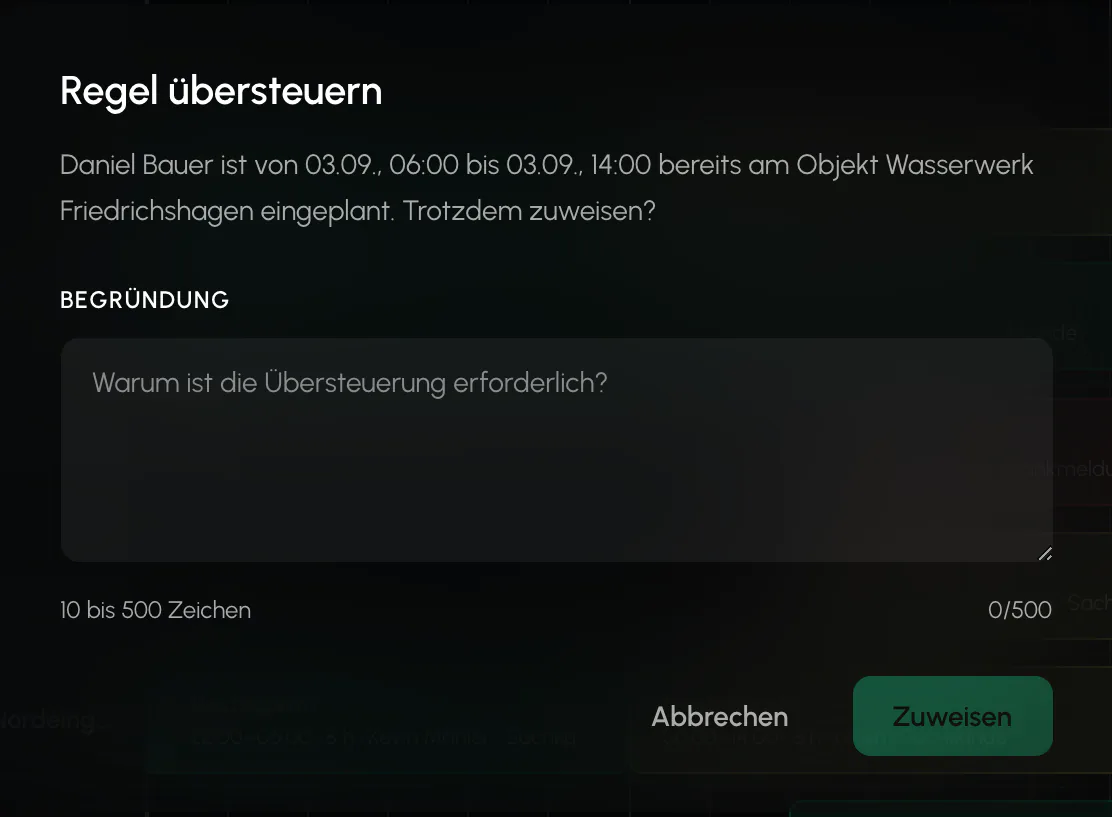
The scheduling team can override double bookings and ArbZG. A reason of 10 to 500 characters is then required. Qualifications and site blocks can never be overridden, and there is no override when a security officer claims a shift.
A separate permission: Overrides require a separate permission that you assign deliberately. The included "Dispatcher" role does not contain it. After every change to role management, check who has this permission.
Reassignment
If a staffed shift is reassigned, the new security officer replaces the previous one. If the previous officer had already checked in, they are checked out cleanly instead of being rejected, so the time already worked remains billable.
Live map
The live map no longer has its own page. It is now the Overview. It shows the sites, checked-in security officers and expected security officers on a map that keeps itself up to date.
For each site, a popup shows how many officers are on site, when the last check-in occurred and, if the site is understaffed, an alert with the ratio of officers on site to officers required. From there, "Open deployment plan" takes you directly to the site's Operations Center.
Items in the legend on the left can be shown or hidden individually if the map becomes too crowded.
Assign automatically
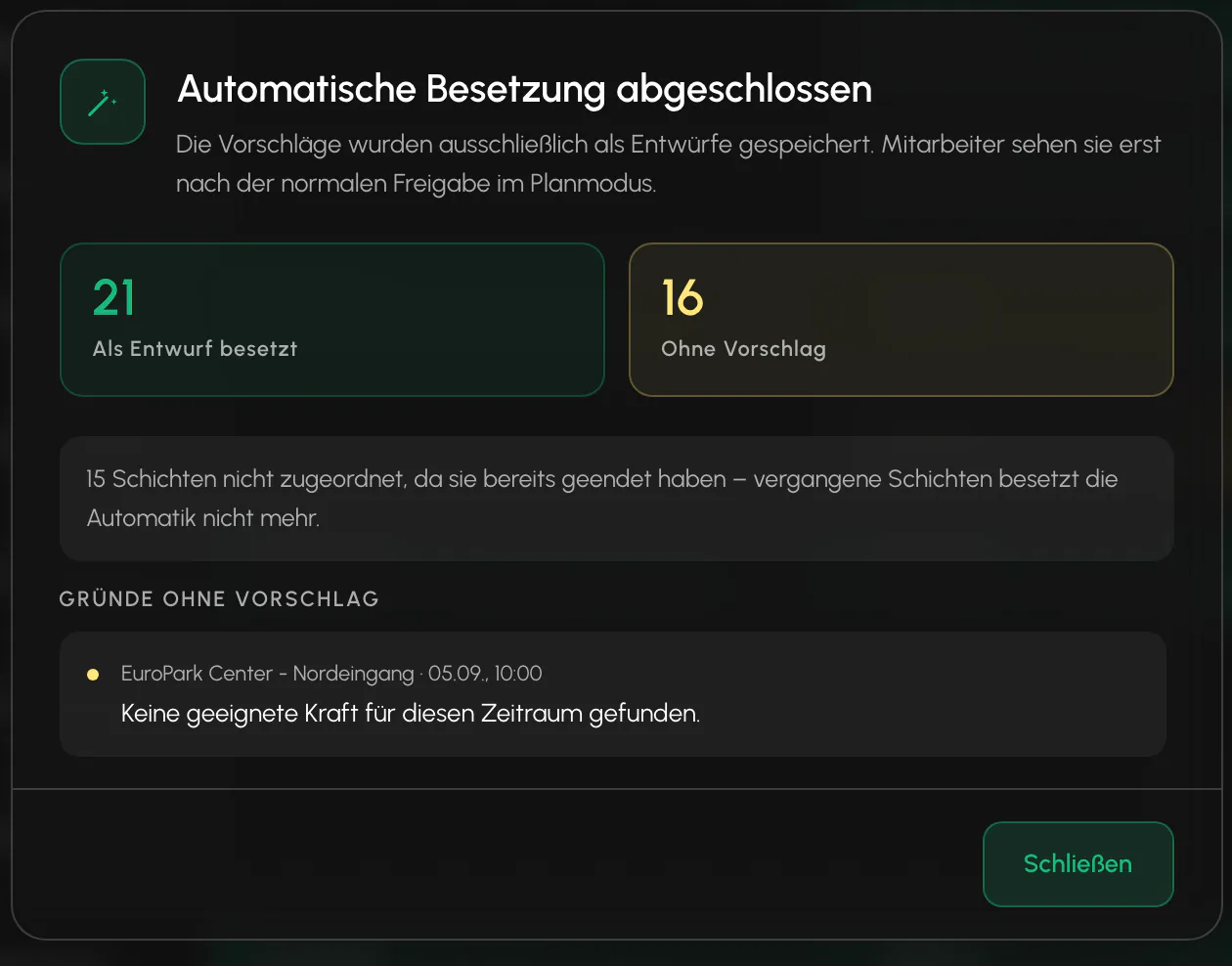
"Assign automatically" suggests security officers for all visible open shifts, only as drafts, without notifications. While the process is running, a loading indicator covers the board. A dialog then summarizes what was assigned and what was not, with a plain-language reason for every unstaffed shift.
Past shifts are no longer assigned. They appear in the result as one consolidated row with this exact reason instead of being disguised as "no suitable security officer found". This is the most common case when the selected period extends into the past.
If filters are set, the dialog also states how many visible positions were left unchanged as a result.
The suggestion favors officers who already know the site, considers a fair distribution of assignments and favors short travel distances. If preferred monthly hours are stored for an officer, the remaining amount for the current month is also considered.
What you can influence yourself: You maintain preferred hours under Team, Member, Contract and Personnel tab. A stored personal vehicle improves consideration for more distant sites. Without either item, nothing changes. The officer continues to be suggested normally.
Only administrative planning factors are used: assignments worked at the site, scheduled and preferred monthly hours, the time of the last contact and distance. Behavioral data such as response or acceptance rates is explicitly not used. This is a deliberate decision in view of the KI-Verordnung, meaning AI regulation.
Related
- Orders and SitesThe order generates the shifts. The site provides the geofence, contacts and prices.
- Shift Marketplace and Self-SchedulingOffer open shifts to security officers and let them claim the shifts themselves. The first to accept gets the shift.
- Absence and ReplacementA sickness report starts a process, not automatic replanning. The scheduling team retains the decision.
Updated on: 03.09.2026