'%20fill='%23fff'%20fill-rule='evenodd'%20clip-rule='evenodd'%20d='M1.94516e-05%200.0202086C0.0420195%201.22421%2015.477%2022.8672%2025.974%2036.4392C80.466%20106.895%20148.48%20166.337%20231.974%20216.477C250.654%20227.694%20271.214%20239.258%20308.974%20259.785C390.041%20303.855%20418.027%20323.655%20445.375%20356.29C457.567%20370.839%20458.267%20370.657%20438.242%20358.146C387.532%20326.465%20356.693%20316.359%20305.474%20314.635C278.901%20313.741%20256.584%20316.015%20228.224%20322.508C219.385%20324.532%20216.216%20326.29%20221.407%20326.29C233.608%20326.29%20264.586%20334.87%20282.263%20343.145C295.881%20349.52%20314.974%20361.858%20314.974%20364.283C314.974%20364.695%20312.612%20365.334%20309.724%20365.703C241.199%20374.463%20154.183%20428.191%2092.562%20499.79C75.09%20520.091%2071.7%20524.859%2077.035%20521.628C78.926%20520.482%2084.728%20516.968%2089.927%20513.819C112.706%20500.021%20145.195%20487.437%20169.935%20482.828C181.824%20480.613%20205.552%20478.817%20211.298%20479.696L216.122%20480.435L203.794%20493.112C142.137%20556.516%20104.948%20625.881%2092.913%20699.925C90.533%20714.569%2090.783%20715.586%2094.806%20707.641C105.92%20685.691%20127.936%20659.716%20144.474%20649.04C150.781%20644.969%20158.103%20641.29%20159.899%20641.29C160.273%20641.29%20161.083%20648.827%20161.699%20658.04C165.47%20714.441%20188.011%20764.593%20226.674%20802.603C262.563%20837.887%20306.066%20866.035%20398.474%20913.767C434.747%20932.503%20444.973%20937.877%20458.974%20945.562C570.722%201006.9%20619.955%201060.37%20650.021%201153.06C653.459%201163.66%20656.39%201172.21%20656.535%201172.06C656.68%201171.91%20657.989%201166.17%20659.445%201159.29C682.51%201050.31%20655.152%20934.035%20584.506%20840.79C562.617%20811.9%20543.899%20791.508%20489.954%20737.79C426.931%20675.032%20411.607%20655.099%20405.006%20627.29C392.323%20573.863%20438.939%20538.423%20500.849%20554.425C526.675%20561.1%20544.604%20577.062%20549.915%20598.107L551.59%20604.743L564.032%20606.485C634.063%20616.289%20704.147%20646.368%20736.626%20680.561C749.96%20694.598%20749.787%20706.055%20736.132%20713.269L732.474%20715.202L742.766%20715.246C753.94%20715.294%20764.079%20713.573%20776.282%20709.556L784.091%20706.987L786.782%20708.95C791.451%20712.357%20797.8%20722.825%20799.144%20729.336C800.681%20736.776%20800.851%20736.757%20806.282%20728.54C830.903%20691.286%20836.954%20633.079%20820.076%20595.855L817.271%20589.667L808.372%20586.346C782.299%20576.613%20762.637%20558.586%20741.181%20524.743C729.885%20506.926%20727.08%20500.527%20723.898%20485.323C719.333%20463.505%20718.535%20461.808%20707.053%20449.509C690.138%20431.393%20684.217%20423.522%20661.746%20389.29C602.592%20299.172%20519.411%20225.38%20413.356%20168.936C385.699%20154.217%20328.981%20128.949%20327.322%20130.609C327.135%20130.796%20332.883%20134.879%20340.096%20139.682C394.802%20176.112%20443.502%20218.504%20467.755%20250.806C475.015%20260.475%20485.69%20277.926%20484.843%20278.74C484.64%20278.936%20480.199%20275.945%20474.974%20272.096C430.93%20239.644%20400.199%20223.792%20315.974%20190.078C174.722%20133.537%20108.045%2094.3042%2016.767%2014.0202C7.53105%205.89621%20-0.0139805%20-0.403791%201.94516e-05%200.0202086ZM592.467%20436.927C603.971%20451.343%20612.149%20463.814%20615.502%20472.054C626.595%20499.317%20631.458%20503.825%20657.974%20511.427C664.299%20513.24%20674.182%20517.081%20679.937%20519.961C685.691%20522.842%20690.502%20525.096%20690.627%20524.971C690.752%20524.845%20688.519%20521.149%20685.664%20516.757C682.81%20512.364%20678.077%20504.207%20675.147%20498.629C668.633%20486.227%20664.825%20482.16%20649.462%20471.196C634.986%20460.866%20585.876%20426.936%20584.662%20426.427C584.187%20426.228%20587.699%20430.953%20592.467%20436.927Z'/%3e%3c/svg%3e)
Settings Guide
The settings are organized by topic, with the navigation on the left. This chapter explains what each section contains and where to find details.
Requirements
- Most sections are reserved for the Owner role
- Sections you cannot see require permissions you do not have
Account
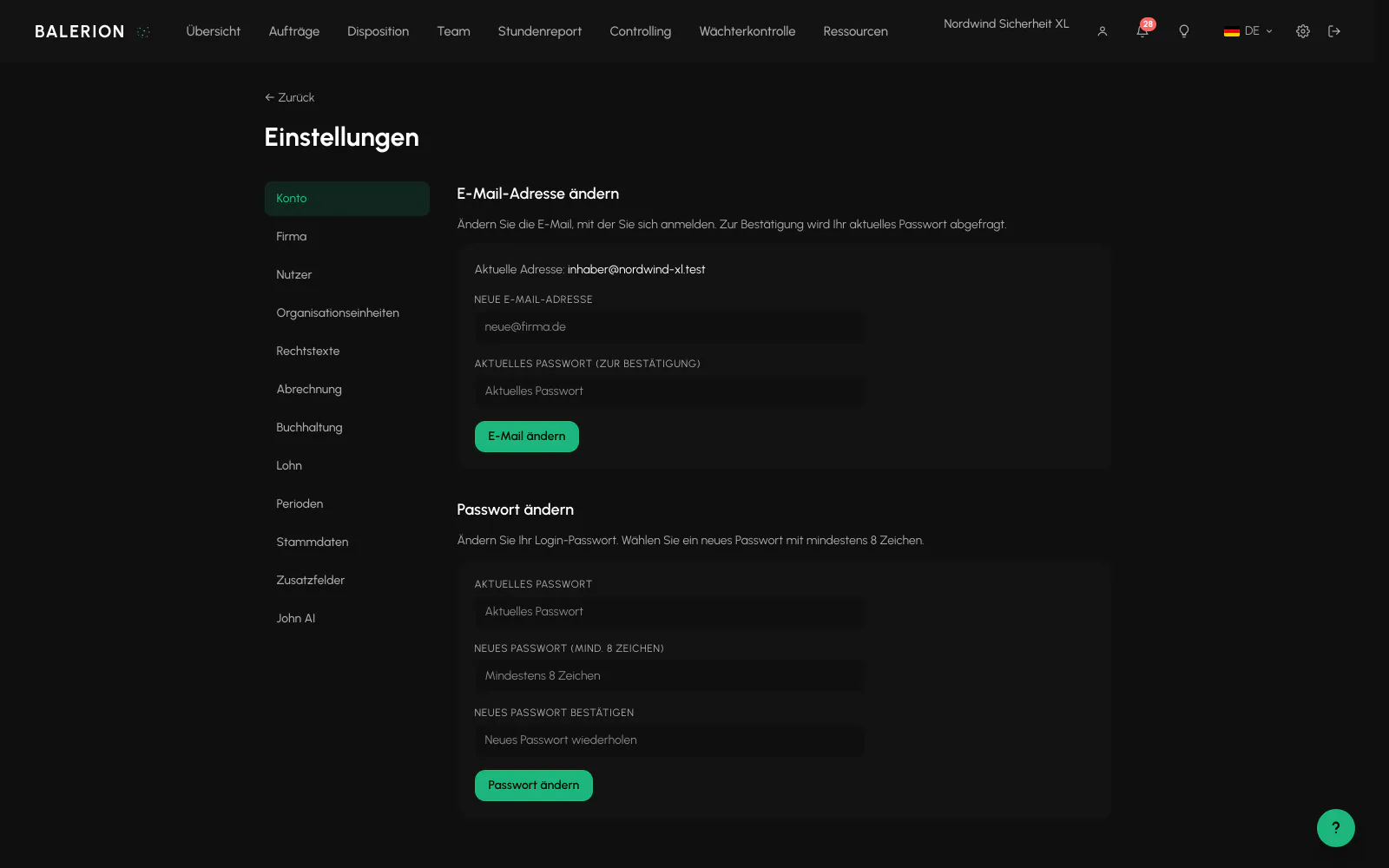
Change your own email address and password. This is the only section visible to every role.
Company
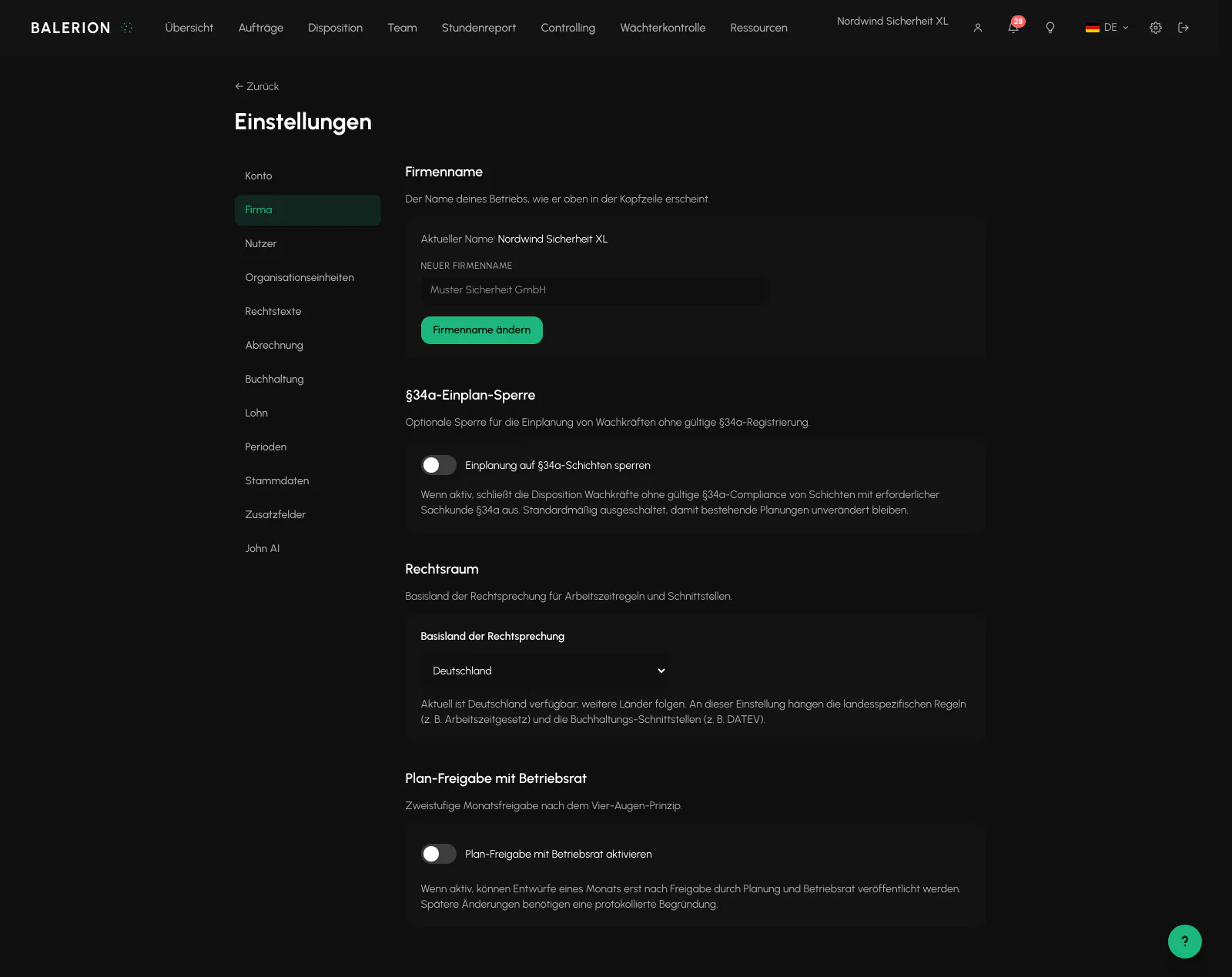
Company name and three switches with far-reaching effects:
- Enforce § 34a. This controls how strictly evidence is checked during scheduling. See Qualifications and § 34a.
- Jurisdiction. The base country whose law governs working time rules and interfaces. Germany is currently available, with more countries to follow. Country-specific rules depend on this setting.
- Plan approval. Enables the two-stage approval process. See Works Council and Plan Approval.
Users and organizational units
Users: create office access and assign roles and permissions. See Team and Roles. Do not confuse this with the team list, which contains the security officers.
Organizational units: locations or branches and who can access which one. See Organizational Units. The section appears only with the appropriate permission.
Legal texts
Review the applicable versions of the AGB, meaning General Terms and Conditions, the Privacy Policy and the Terms of Use, along with your own recorded consents and their dates. Visible to every role.
Billing and accounting
Billing: access to the subscription and payment, plus the legal details required on every invoice, including the Leitweg-ID. See Subscription and Billing and E-Invoices.
Accounting: chart of accounts details and automation, meaning when a document is transferred to accounting.
Payroll
The most extensive section, with four cards:
- Wage types & premiums with the public holiday calendar. See Wage Types and Premium Rules.
- Collective agreement regions. See Collective Agreement Regions.
- Working time account models as the basis for the accounts. See Payroll and Premiums.
- Payroll handoff. See Payroll Handoff.
Periods
Close and reopen months. See Period Close. This appears only with the permission to close periods.
Master data
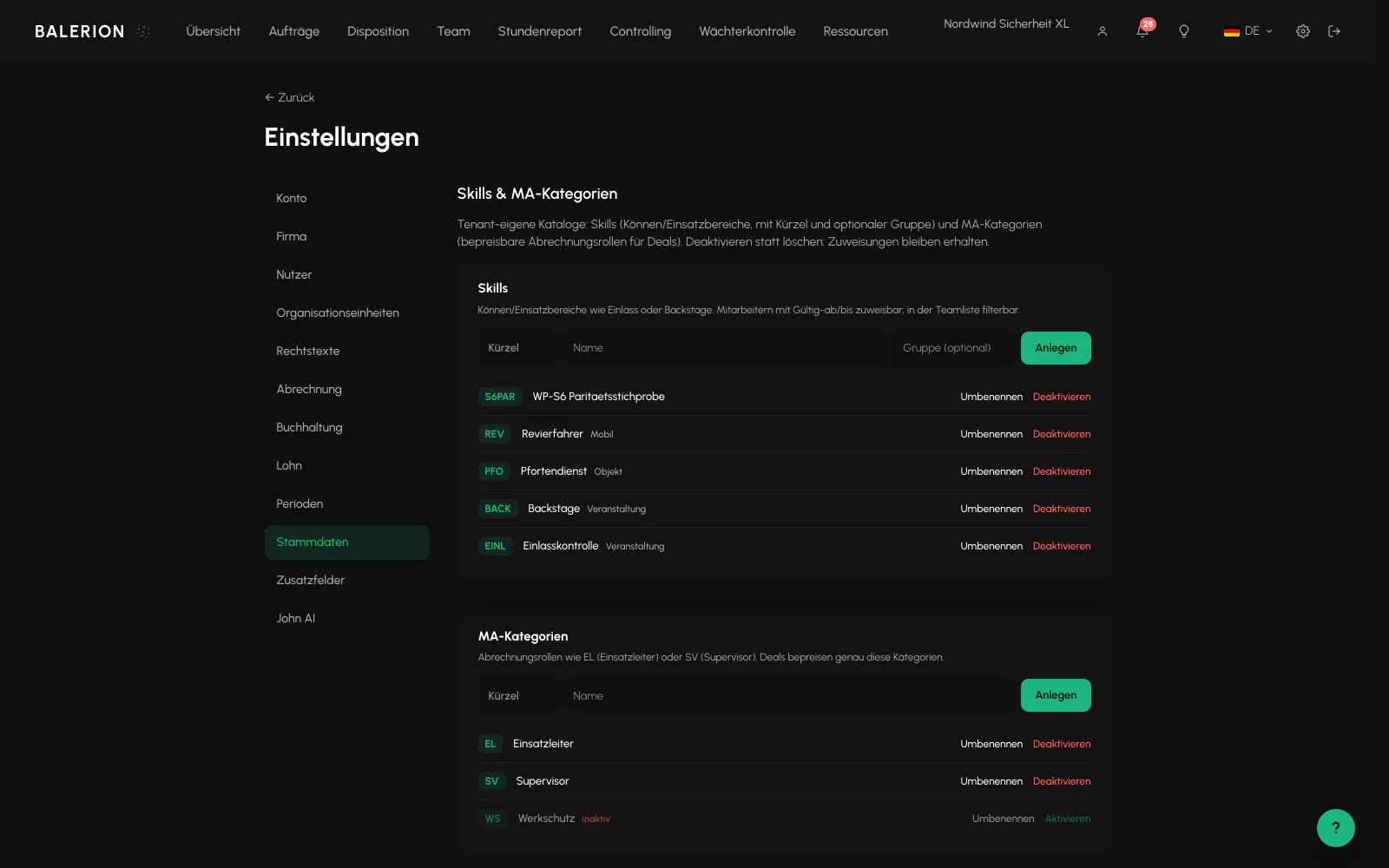
Two custom catalogs used as selections in many places:
- Skills are capabilities and work areas such as admission control or backstage. They are assigned to security officers with Valid from and Valid until dates.
- Employee categories are billing roles such as EL for Einsatzleiter, meaning operations manager, or SV for supervisor. These are exactly the categories priced by a deal. Without them, a pricing model remains empty.
Both have a code and a name, and skills also have a group. Deactivate them instead of deleting them so that the history is retained.
It is worth setting up both carefully at an early stage. You can rename them later, but every existing selection depends on them.
Custom fields
Custom fields for security officers, sites and orders. See Custom Fields.
John AI
The replacement agent's settings, including contact windows and automation level. If the agent is not enabled for your company, a discreet notice card appears here instead of the fields. See John AI, the Replacement Agent.
If you cannot find something
Deals are not located here. They are under Orders because they belong to the customer.
Premium rates and the night window are located within the Wage types & premiums card, not as a separate item in the navigation.
Sections completely absent from the navigation require a role or permission you do not have. The settings hide content that would be locked anyway instead of sending you to an error message.
Related
- Getting StartedThe order matters. Starting with shifts can quickly lead to dead ends.
- Wage Types and Premium RulesThe items carry the wage type numbers used by your payroll software so that the payroll export can be processed there. Maintain them here.
- Custom FieldsInformation that does not fit into a standard field gets its own field. Custom fields are available for security officers, sites and orders.
Updated on: 03.09.2026